paperhurts reader is a private reading app for long fiction. It keeps your stories in one library, reads them to you out loud (even with the screen locked), remembers your place on every device, and keeps working when you lose signal.
This guide is for someone who has just been invited. You don't need to know anything technical — only how to use an iPhone.
Getting in
You'll need two things from the person who invited you: a link to install the iPhone app, and an invite code. The steps below take about ten minutes.
1. Install the iPhone app
The app isn't in the App Store — the person who invited you builds it for your phone.
- If they ask you to register your iPhone first, they'll send you a link for that. Open it in Safari, allow the download, then go to Settings and tap Profile Downloaded near the top to install it. This only tells Apple your phone may install the app.
- When they send the install link, open it on your iPhone and install the app. It appears on your home screen as paperhurts.
- The first time you open it, iPhone refuses and says it needs Developer Mode. That's expected. Open Settings → Privacy & Security, scroll to the bottom, tap Developer Mode, switch it on, and tap Restart. After the phone restarts and you unlock it, tap Turn On when asked. (The Developer Mode switch only shows up after the app is installed and you've tried to open it once.)
2. Create your account
- Open paperhurts.
- Tap Register under the sign-in form.
- Fill in your email, a username, and a password of at least 12 characters (twice; a short phrase of a few words is easy to remember and works well), then type the invite code the person who invited you gave you. Each code works once. Tick I’m 18 or older, then tap Register.
You land on the Tonight screen, signed in. If the app ever asks you to sign in again, use the same email and password. (Logout is at the top of the Library tab, after a User guide button that opens this guide and About.)
Your library belongs to your account: other people who use Reader can't see your stories, bookmarks, or notes.
About: before you register, About this app and what it stores under the form opens a page about Reader; later it's About at the top of the Library tab. It says Reader is unofficial (not part of AO3 or the Organization for Transformative Works), what the server keeps and who can see it, where to write if you want a work removed, and links to support the OTW, which runs AO3.
Changing your password
Tap Account at the top of the Library tab. Type your current password, then the new one twice (at least 12 characters), and tap Change password. Your other devices stay signed in. If you made an API token for a Shortcut, it keeps working too.
If your account is older than the 12-character rule, your old password still works until you change it.
Forgot your password?
On the sign-in screen, tap Forgot your password?, type your email and tap Send reset link. If an account uses that email, a link arrives by email (check your spam folder if you don't see it). Open it, type a new password twice and tap Change password. The link works once, for 30 minutes, and signs out every device signed in to your account: sign in again with the new password.
Deleting your account
Tap Account at the top of the Library tab, then Delete my account…. Type your password, tap Delete account, and confirm. Everything in it goes: your stories and books, bookmarks, highlights, reading places, settings and API tokens. Every device you're signed in on is signed out. It can't be undone, so if you want to keep your stories, export your library first.
Prefer Safari?
You can also use Reader in Safari instead of the app. Open the web address the person who invited you gives you, sign in, then tap Share → Add to Home Screen so it opens like an app.
Reading works the same in both. A few things need the iPhone app:
- Adding stories from AO3. The app fetches them from AO3 on your phone. In Safari you can still import from the other sites and upload files: on AO3, tap Download → EPUB and upload the file.
- Listening. In the app, narration keeps playing with the screen locked and works with the lock screen, CarPlay and Bluetooth. In Safari it's less dependable once the screen locks.
- Sharing to Reader from other apps.
On Android
There's no Android app yet: use the website in Chrome. From the person who invited you, you need only the invite code and the web address. Open the address, register as in step 2 above, then tap Chrome's ⋮ menu → Add to Home screen (it may say Install app) so it opens like an app. As in Safari, add AO3 stories as files (Download → EPUB on AO3), and narration stops when the screen locks.
Your library
Four tabs run along the bottom of the screen: Tonight, Library, Search and Import.
Tonight
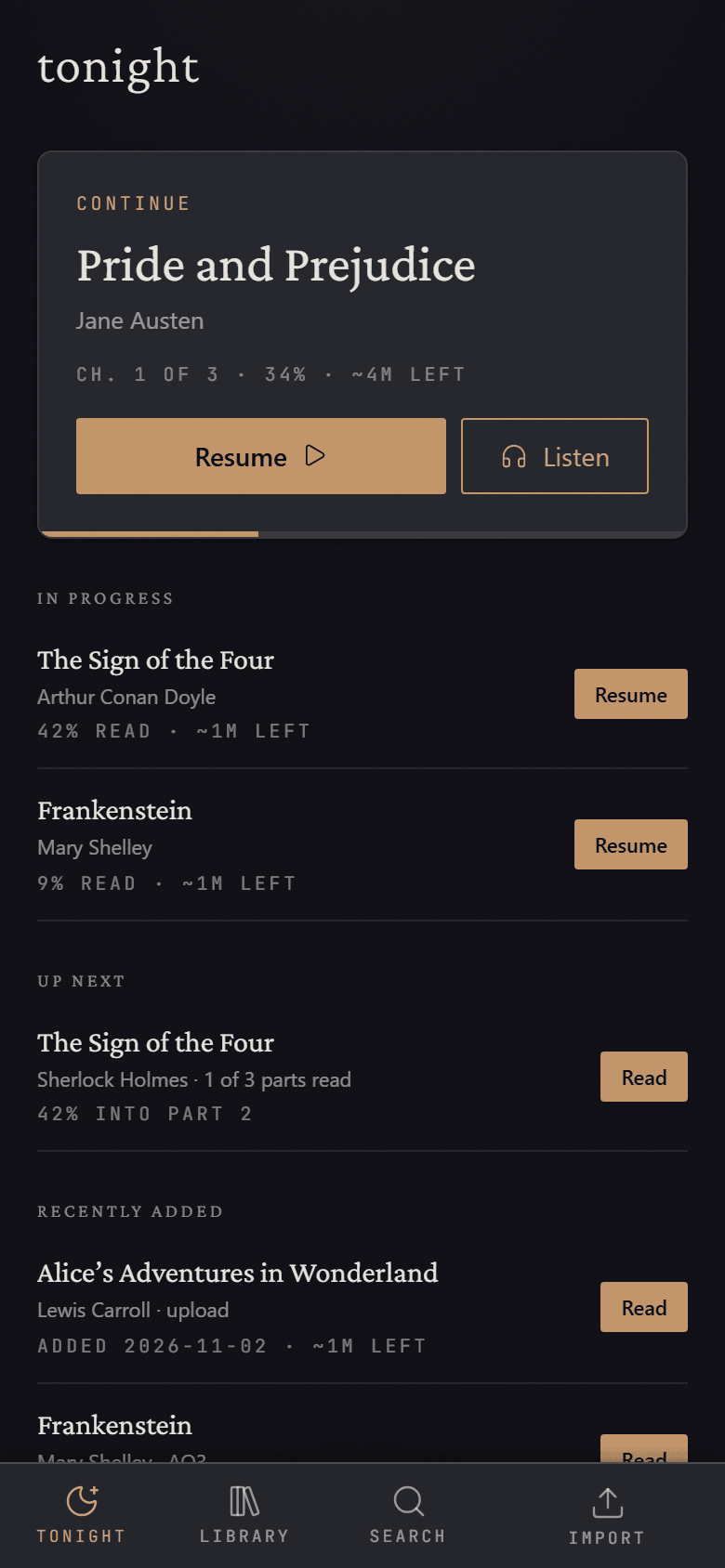
Tonight is where the app opens. The big Continue card is the story you read last: Resume opens it where you left off, and Listen opens it and starts reading aloud (in Safari, Listen opens the audio controls and you tap Play).
Below it:
- In progress — other stories you've started. A story that's still being written stays here, even once you've caught up, until it's marked complete.
- New chapters — stories with new chapters waiting (see Checking for new chapters).
- Up next — the next part of a series you're working through.
- Recently added — your newest imports.
Tap a story's name to see its page; tap its button to jump straight into reading.
The Library tab
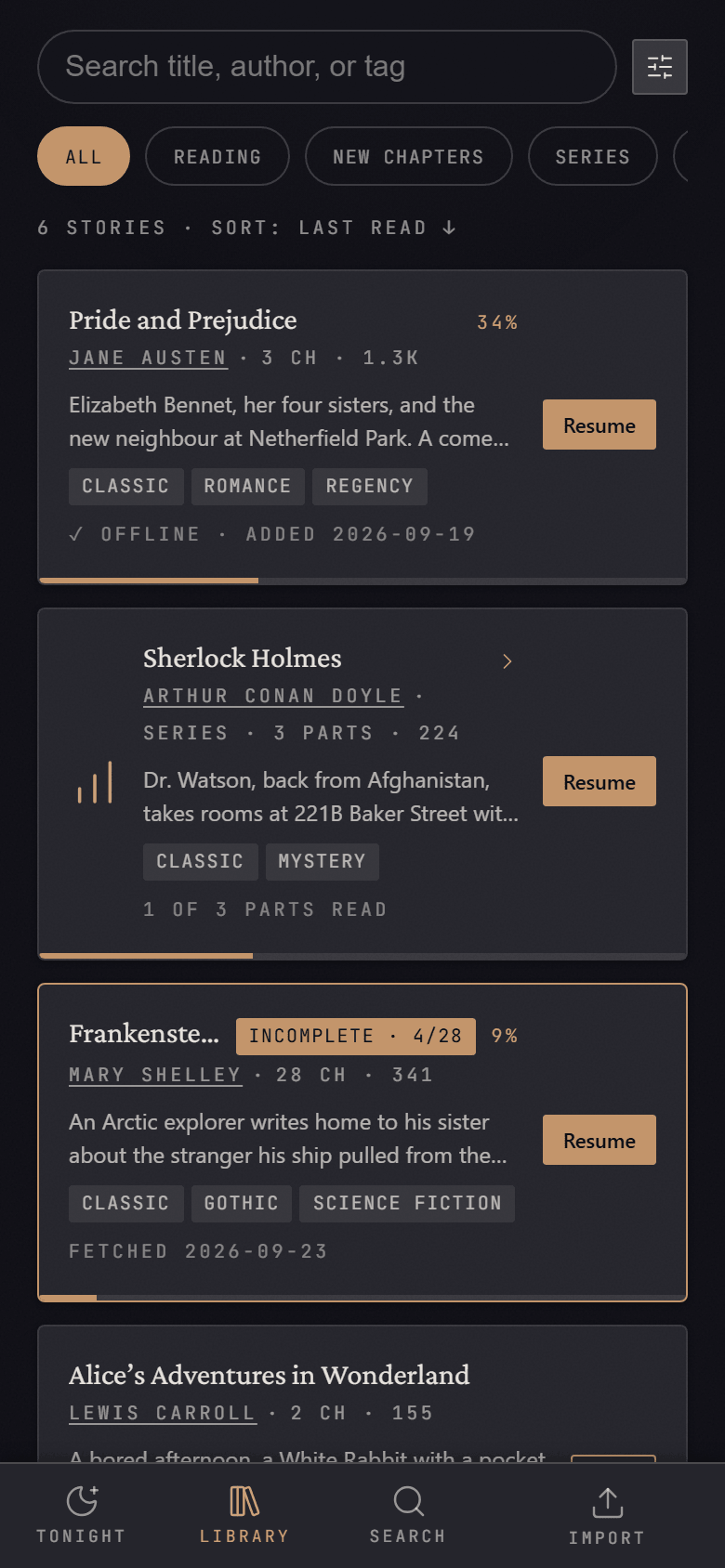
The Library tab lists everything you've added.
- Search box — type part of a title, author, or tag.
- Quick filters (the row of chips) — All, Reading (the same stories as Tonight's In progress), New chapters, Series, Complete (you've read it all, and it's finished). If your stories come from more than one site, there's a chip per site too, plus 📁 Uploaded for files you added yourself.
- Each row shows the title, author, length, summary and tags, plus a progress bar along the bottom edge and your percentage read. ✓ Offline means the story is saved on this phone. A badge like +2 NEW means new chapters are waiting; Incomplete · 4/28 means only part of it has been downloaded so far (see Incomplete stories).
- Tap the author's name to show only that author's stories.
- Series are grouped into a single card ("Series · 3 parts · 1 of 3 parts read"). Its button opens the part you're up to; tap the card to see every part.
- Tap a row to open the story's page. Tap its button (Read, Resume or Import) to go straight to reading.
- Removed at its author's request — if an author asks for a work to be taken down, it leaves the app: this row takes the story's place, its copy on your phone is deleted, and it can't be added again. Tap ✕ to dismiss the row.
The Search tab does the same kind of search across your whole library (titles, authors, tags and series names) and shows results as you type.
Sorting and filters
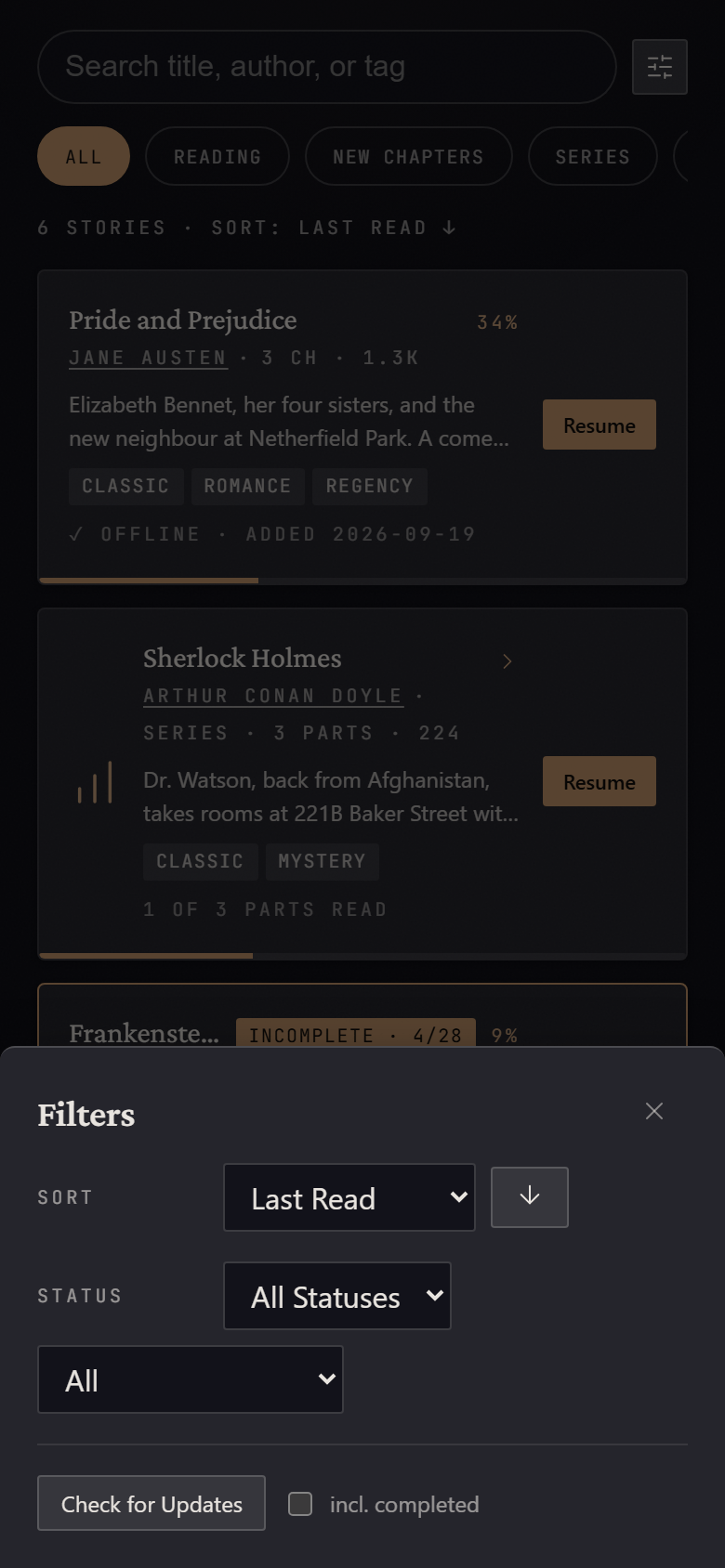
Tap the filter button next to the search box (or the "6 stories · Sort: …" line under the chips) to open Filters:
- Sort — Date Added, Last Read, Title, Author, Last Updated, Word Count or Progress. The arrow button flips the order.
- Status — whether the author has finished the story (Completed / In Progress). This is different from the Complete chip, which is about whether you've finished reading it.
- The second menu shows stories by download state: Imported, Incomplete, or Not Yet Imported.
- Format (only if you've added PDFs or comics) — Fiction, or Books & manga.
When any filter is on, a Clear filters button appears on the Library tab.
Checking for new chapters
Reader doesn't check for updates on its own. When you want to know if anything new has been posted to your forum stories (SpaceBattles, Sufficient Velocity, Questionable Questing, AlternateHistory):
- Open Filters and tap Check for Updates. Tick incl. completed first if you also want to re-check stories the author has marked finished.
- A progress line appears above your stories ("… 3 new chapters so far"). You can keep reading while it runs.
- Stories with new chapters get a +N NEW badge and appear under New chapters on Tonight. The badge clears when you open the story to read.
It checks each forum story once a day: run it again the same day and, when it finishes, it says how many it had already checked.
To update just one story, open its page and tap Re-fetch. The button turns amber when the site has posted chapters since your last fetch.
AO3 stories aren't part of Check for Updates (when it finishes, it says how many it didn't check). To see if one has new chapters, open its page in the iPhone app and tap Re-fetch: the app asks AO3 from your phone.
When a story has new chapters, Reader usually downloads just the new ones. So if an author also rewrote or reordered earlier chapters, tap Re-fetch once more after the chapter count matches the site — that pass re-checks every chapter.
Stories you added from a file are never checked; there's no site to check.
Adding stories
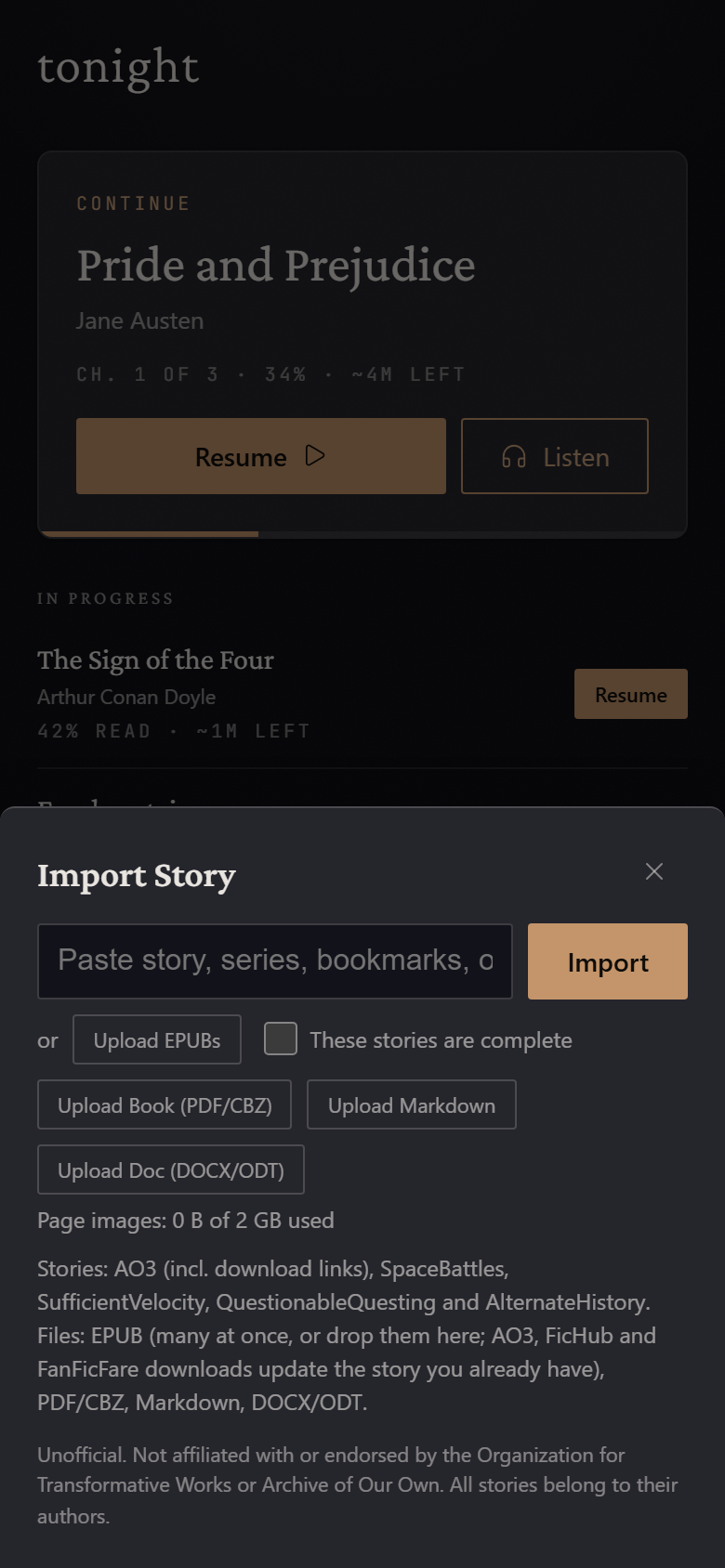
Tap Import in the tab bar.
From a website: paste the story's address into the box and tap Import. Supported sites are AO3, SpaceBattles, Sufficient Velocity, Questionable Questing and AlternateHistory. Import AO3 stories in the iPhone app: it fetches them from AO3 on your phone, one work at a time. You can close the sheet and keep reading — a small progress pill floats above the tab bar; tap it to reopen the sheet. A single story imported this way is also saved for offline reading on that phone when it finishes.
- An AO3 link in Safari or Chrome tells you to import it in the iPhone app, or to tap Download → EPUB on AO3 and upload the file. It also offers Find another copy (see When AO3 won't send a story).
- A FanFiction.Net story comes in as a file: save it as an EPUB with FicHub or FanFicFare, then upload it.
- A link from any other site gets a message listing the sites Reader can import from. Upload the story as a file instead.
Forum stories have a daily limit. Each SpaceBattles, Sufficient Velocity, Questionable Questing or AlternateHistory story you import counts against it. A forum story already in your library gets one check a day of its own that doesn't count: Check for Updates, Re-fetch or Fetch the rest uses it, and another Re-fetch or Fetch the rest that day counts like an import. A fetch that fails doesn't count. When the day's imports are used up, Reader tells you how many you've had and when more are available. A link you shared to Reader waits, and imports the next time you open the app after that.
From a file:
-
Upload EPUBs — ebooks, as many as you like at once (on a computer you can also drag them onto the Import sheet). Each file gets a line saying what happened to it, and you can keep reading while they import. Downloads from AO3's own Download → EPUB, from FicHub and from FanFicFare are recognised as the story they are: importing a newer download of a story you already have updates that story (new chapters added, your place kept) instead of adding a second copy, and that works for a story you first added by its link too. A download never removes chapters you already have, and a cut-off copy never shortens one: a chapter with much less text in the file stays as it was, and the file's line says so. A new upload starts in progress: tick These stories are complete first to mark the whole batch complete. A download from AO3, FicHub or FanFicFare takes the status its site gave it, and a newer download can update it. Uploading a new version of any other file never changes its story's status.
-
Upload Book (PDF/CBZ) — PDFs and comics/manga, shown page by page (see Books and manga). Your PDF and CBZ books can take up to 2 GB together. The line under the buttons says how much they use. A book you start uploading is never cut off by the limit; once your books reach 2 GB, delete one to upload another.
-
Upload Markdown —
.mdor.txtfiles, e.g. your own writing. You choose whether it starts a new work or adds chapters to one you uploaded before. A chapter file titled like one of your works (its#heading or atitle:line) is set to go into that work automatically, and the confirm screen says so. If the file starts with astory:line and a#heading that repeats the work's name, the chapter is named by its own heading underneath (for example "Chapter Ten — Radio Silence"). Pick New work if it's a separate story. Astory:line at the top of the file names the work explicitly. -
Upload Doc (DOCX/ODT) — Word or Google Docs exports, either a finished work or one chapter of an ongoing one. A new story starts in progress; tick This story is complete for a finished one.
In progress: while anything is downloading — including fetches started from a story's page, from the share sheet, or on another device — the top of the Import sheet lists it with a live chapter count ("Chapter 35 of 72"). Check here before tapping a button a second time.
If an import fails, it's listed at the top of the Library with Retry and Dismiss buttons.
Incomplete stories
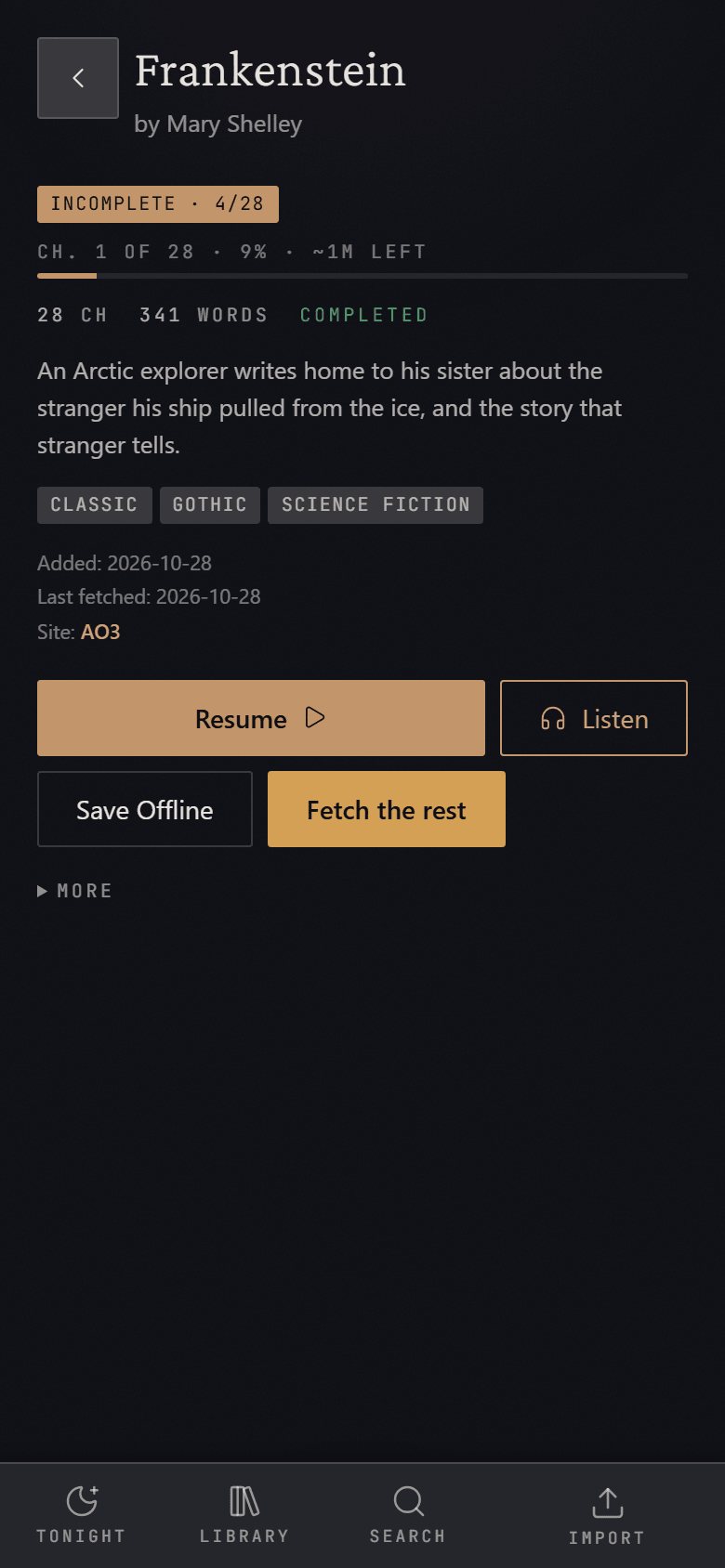
Sometimes a site cuts a long download off partway. Instead of throwing away what it got, Reader keeps it and marks the story Incomplete · 4/28 (4 of 28 chapters so far). You can start reading those chapters right away.
To get the rest:
- Give the site a break for a while.
- Open the story's page and tap Fetch the rest (for an AO3 story, in the iPhone app). Only the missing chapters are downloaded; you can watch it under In progress in the Import sheet.
- Very long stories may need a few rounds. If you tap too soon, you'll see a message saying how many minutes to wait.
When every chapter has arrived, the badge disappears.
When AO3 won't send a story
Sometimes AO3 turns Reader away for a while ("AO3 is refusing …"). When that happens to an import or a Re-fetch, a Get it from another copy box appears under the message. Tap Find another copy:
- FicHub makes an ebook of the story. Tap Open FicHub, download the EPUB it offers, then share the file to the app: it updates the story you already have, and your place is kept.
- Wayback Machine opens a saved copy of the story's page, to read there.
The story page
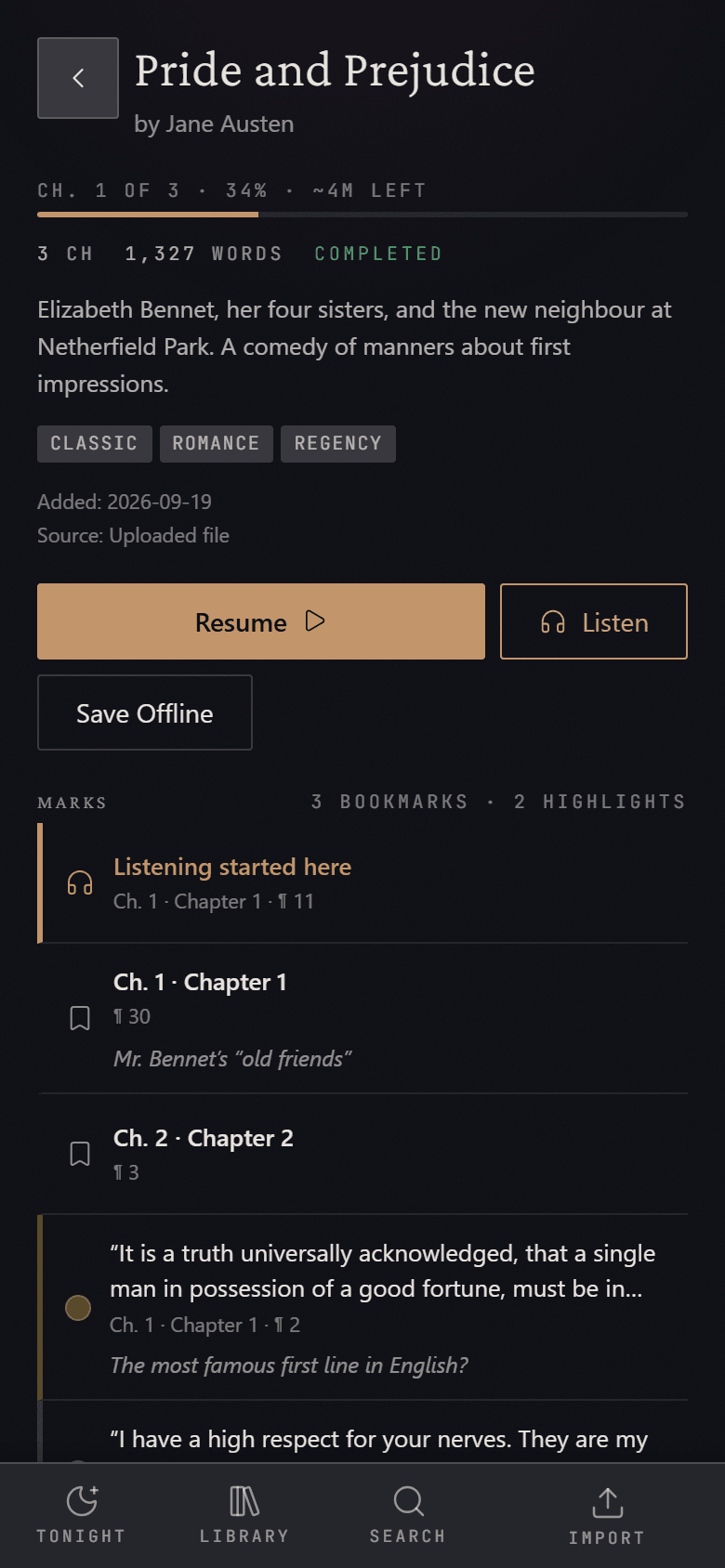
Tap any story's title to open its page: reading progress, the full summary, all tags, and dates.
- Resume / Read — open it in the reader.
- Listen — open it and start reading aloud.
- Save Offline — download every chapter to this phone (it changes to Cached when done).
- Re-fetch — check the site for changes to this story (not shown for uploaded files; for an AO3 story, use it in the iPhone app). On an incomplete story this button is Fetch the rest.
- Part 2 of … (only for stories in a series) — opens the series page.
- More — less common actions: Share link, Export EPUB, Clear Progress, Delete, and for uploaded files Rename, Mark Complete and Series… (see Series).
Share link sends the story's web address to someone: in the iPhone app it opens the share sheet, and in a browser it copies the address ("Link copied"). A story you uploaded from a file has it only if the file says where the story came from.
Export EPUB saves the story as an EPUB file you can open in Books or any ebook app. In the iPhone app, tap Save EPUB… when it's ready and choose Save to Files or Books. Importing that file again later updates the same story instead of adding a copy.
Marks lists everything you've marked in the story: the 🎧 and ⏹ listening markers, your bookmarks (with their notes) and your highlights. Tap one to open the reader right at that spot. That spot becomes your new reading position.
Taking your whole library with you
Tap Export at the top of the Library. Your stories are packed as EPUB files into zip files, in parts if your library is big (each part holds a few hundred stories at most). Tap Download for each part and keep the page open while it downloads. In the iPhone app, tap Save when a part is ready, then Save to Files.
When a part finishes, the page says whether every story made it. If it
says some ran out of time, tap Download again. Inside each zip,
export-report.txt lists what's in it and anything left out. Books and
manga (PDF/CBZ) and stories that aren't imported yet can't be exported.
Series
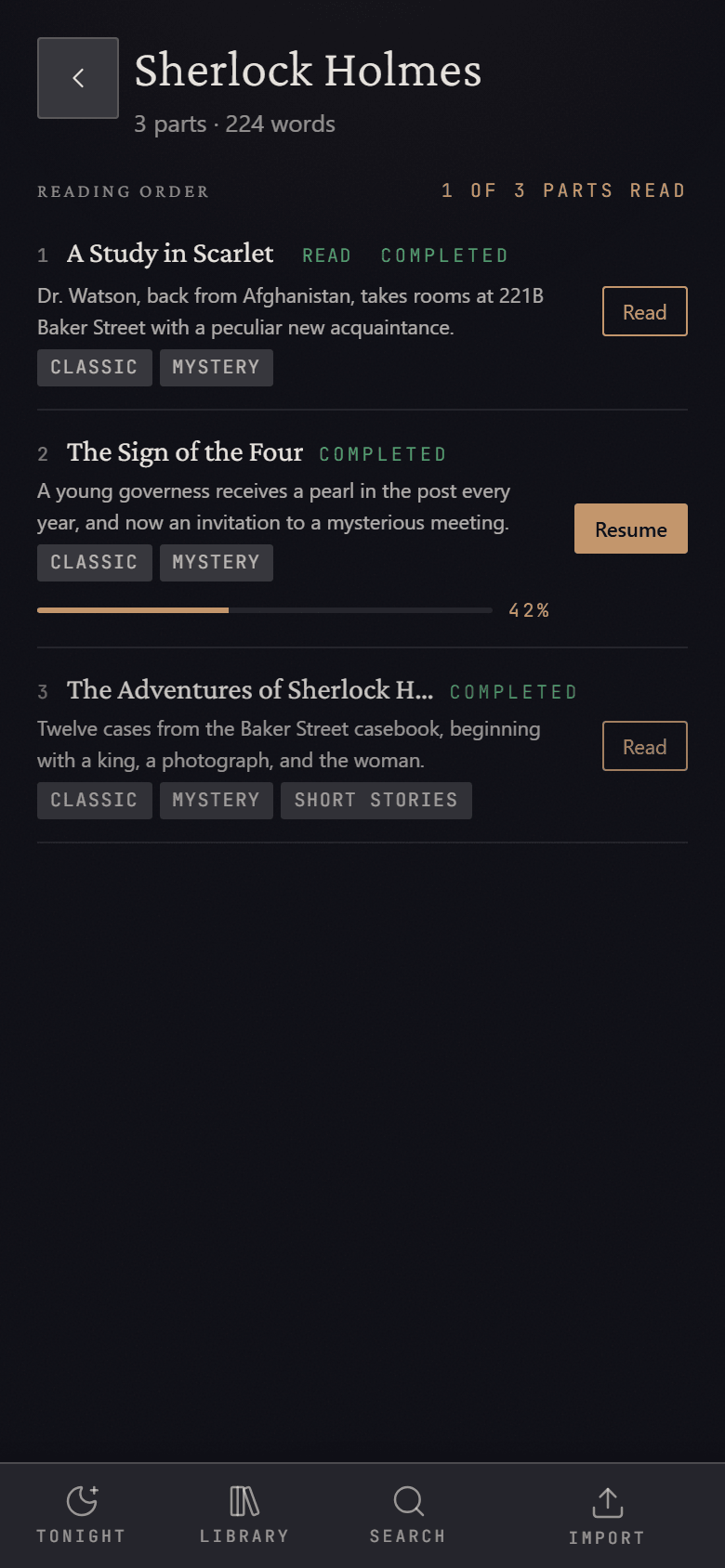
A series page lists every part in reading order with what you've read, and a Read / Resume button for each. Tap a part's title to see its own page. At the end of a part, the reader offers the next one: Read Part 3 opens it, and Open the series shows up when the next part isn't in your library yet or this was the last one.
Stories you uploaded can be a series too: on a story's page, More →
Series…, type the series name (the ones you already have are offered)
and, if you like, its part. A chapter's Series: and Part: lines do the
same, and an EPUB that names its series joins it. Your own series never mix
with AO3's, even with the same name.
Themes
Reader comes in seven themes — System (follows your phone's light/dark setting), Dark, Light, Sepia, Night (AMOLED), Solarized Light and Solarized Dark — and you can build your own (see Themes and your own colours). Tap Theme at the top of the Library tab, or the theme button in the reader. Your choice applies everywhere in the app.
Reading
Showing and hiding the controls
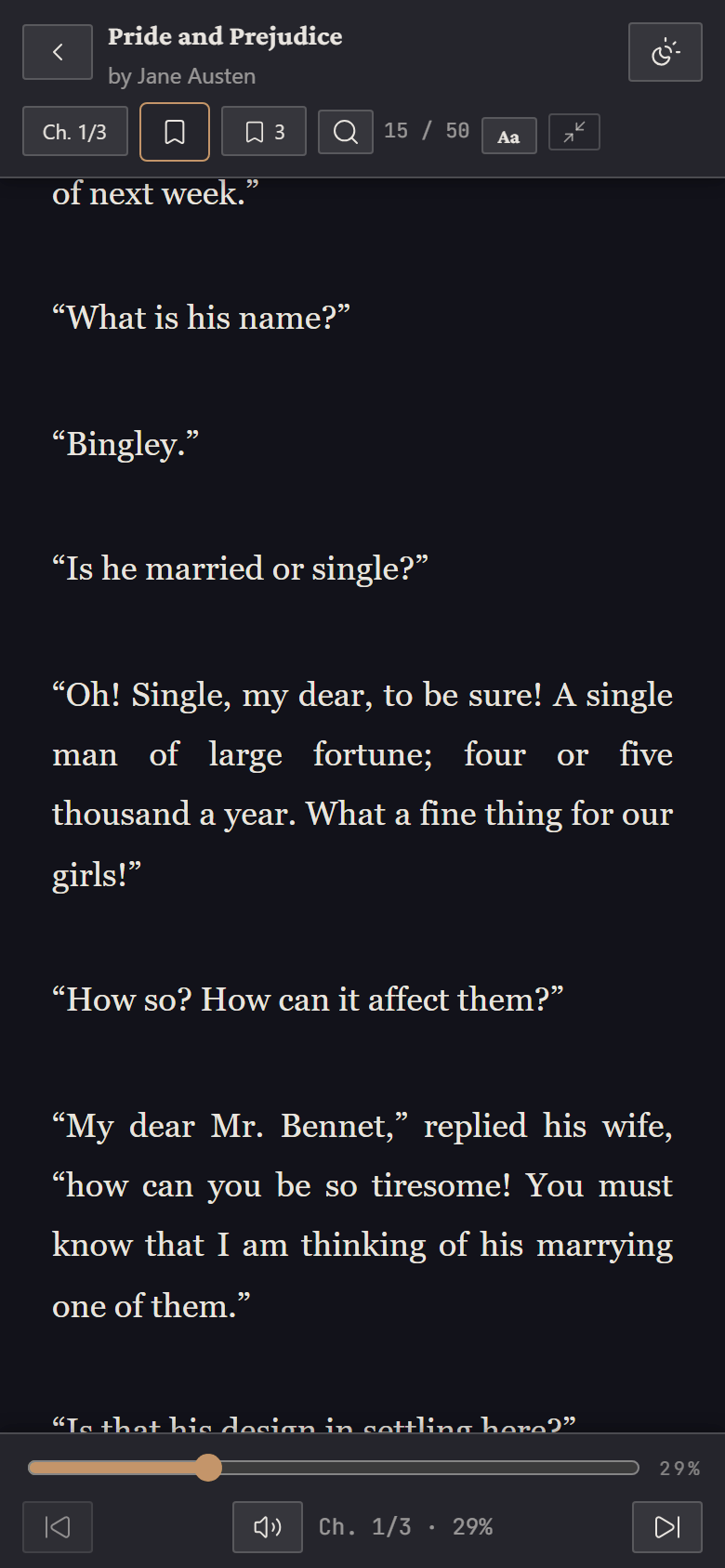
The reader opens full screen with just the text. Tap the page once to show the bars; tap again, scroll, or wait about five seconds and they hide.
The top bar, left to right: back to the library, the story title (tap it to see a long title in full), and the theme button. Below that: the chapter menu ("Ch. 1/3"), the bookmark button, the bookmarks list (with a count), find in story (magnifying glass), your paragraph number ("15 / 50"), Aa for text settings, and the control size button.
The bottom bar has a slider to jump anywhere in the story, previous and next chapter buttons, and the speaker button that opens the listening controls.
Moving around
- Scroll to read — the whole story is one long page.
- Chapter menu — tap "Ch. 1/3" and pick a chapter.
- Previous / next chapter — the arrow buttons at the ends of the bottom bar.
- Slider — drag it and let go to jump to that point.
- Find in story — tap the magnifying glass, type, and step through matches with the arrows.
Text settings (Aa)
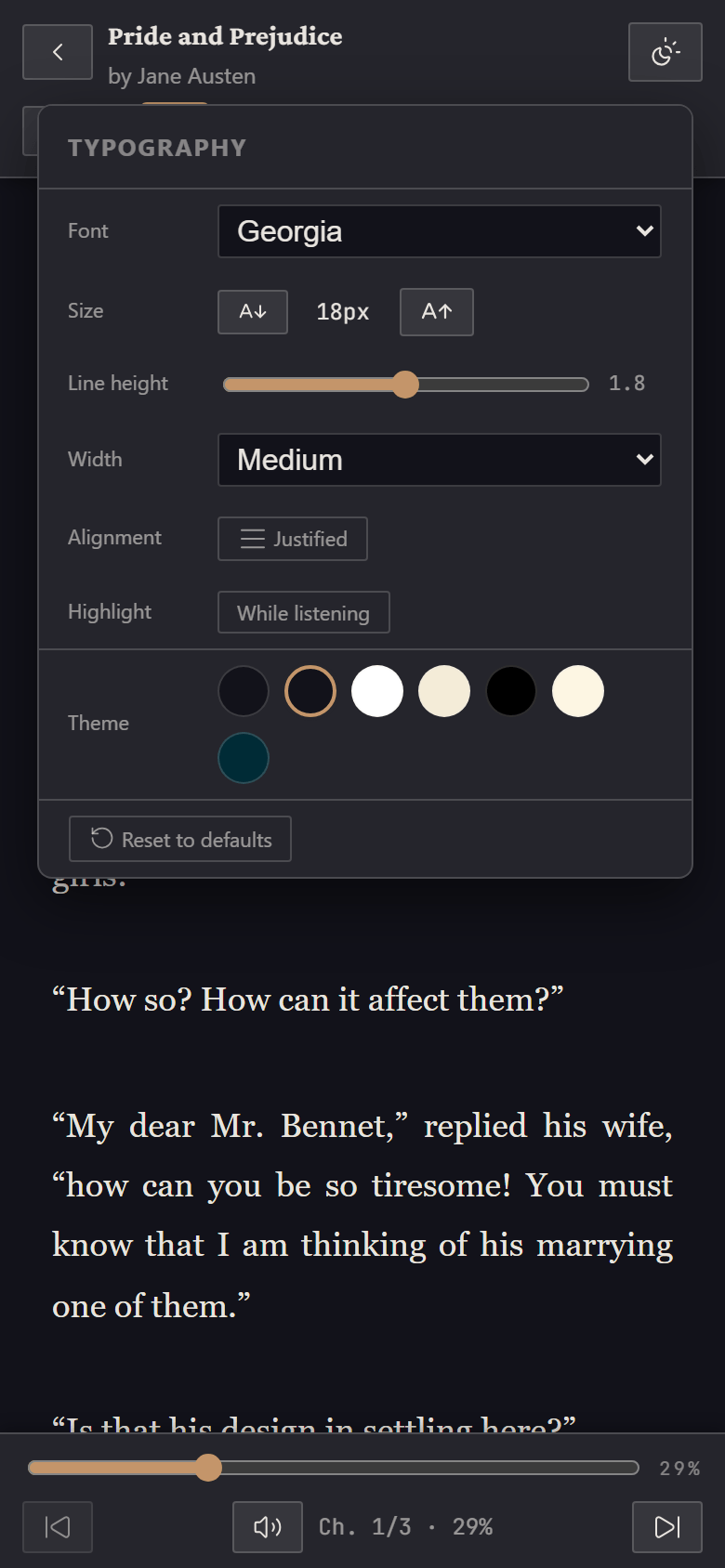
Tap Aa to change:
- Font — including OpenDyslexic.
- Size — the A↓ / A↑ buttons.
- Line height — the slider.
- Width — Narrow, Medium, Wide or Full (mostly matters on bigger screens).
- Alignment — Justified or Left.
- Highlight — whether the current paragraph is highlighted Always or only While listening.
- Theme — tap a swatch to switch preset themes quickly.
- Reset to defaults puts all of the above back.
Your text settings are saved to your account, so a new phone picks them up after you sign in.
Themes and your own colours
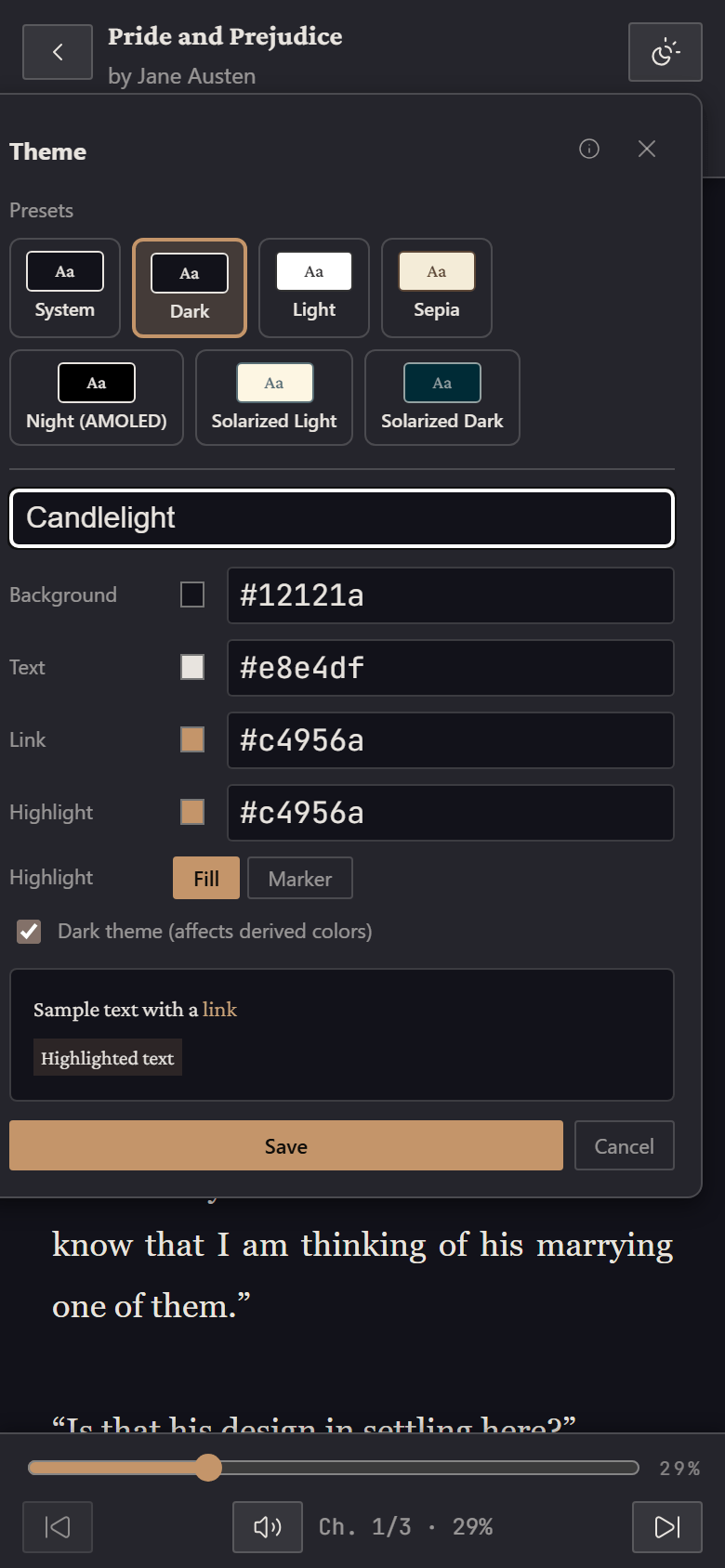
Tap the theme button (top right in the reader) to see all themes. To make your own:
- Tap + New custom theme, name it, and pick colours for Background, Text, Link and Highlight. Choose Fill or Marker for how highlights look, and tick Dark theme if your background is dark.
- The page changes colour as you tweak, so you can see the result.
- Tap Save.
To change a theme you made, tap its pencil icon. Edits apply and save as you go — there's no Save button for edits:
- Done closes the editor and keeps your changes.
- Cancel puts everything back the way it was when you opened the editor, even changes that were already saved.
- Closing any other way (tapping outside, or the ✕) keeps your changes.
Your custom themes are saved to your account and come back on a new device. You can also Export a theme as a file to share it, and Import one someone shares with you.
Control size and landscape
The control size button (next to Aa) switches the reader's buttons between Compact and Comfy. Comfy makes every control bigger and easier to hit — handy in the car.
Turn your phone sideways and the bars shrink to a single slim row so more text fits. In the iPhone app, the top bar also has a rotation lock button so the page stays put when you lie down.
Your place
Reader remembers where you are in every story and opens there next time — on this phone and on any other device where you sign in. Just close the app; there's nothing to save.
When you reach the very end of a story, a Done button appears in the top bar. It removes the offline copy from this phone to free up space; the story stays in your library.
Bookmarks
Tap the bookmark button in the top bar to bookmark the paragraph you're on; it fills in. Tap it again to remove the bookmark (an Undo appears for a few seconds).
Tap the bookmarks list button (the one with a number) to see them all. Tap a bookmark to jump to it; use the pencil to add or edit a note, and the bin to delete it.
Highlights and notes
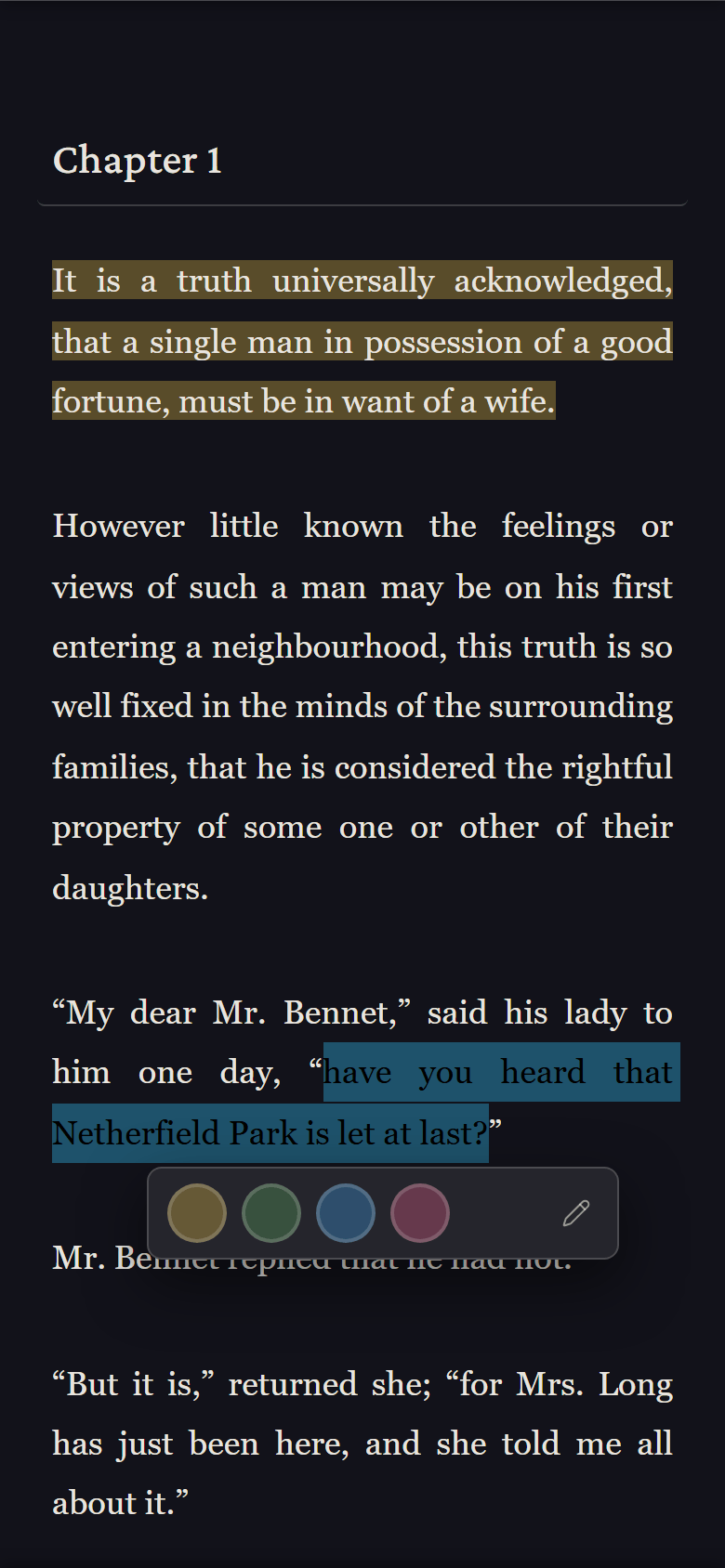
- Press and hold on a word, then drag the handles to cover the passage you want.
- Tap one of the four colours (yellow, green, blue, pink) that appear under it. To add a note at the same time, tap the pencil first, type, then pick a colour.
Tap a highlight later to change its colour, edit its note, or delete it. The Highlights tab in the bookmarks list shows them all and can copy or download them as a text file (Markdown).
Look up a word: press and hold a single word to see its definition. Words in other forms find their dictionary word ("geese" shows goose). The definitions come from Open English WordNet, and small words like "of" and "during" have definitions of our own, shown before WordNet's. They're looked up by the paperhurts server itself, so no outside service sees what you look up. This needs an internet connection. On iPhone, the menu's own Look Up also opens Apple's dictionary.
Books and manga
PDFs and comics (CBZ) open in a page-by-page reader instead:
- Switch between vertical scrolling and one page at a time.
- In one-page mode, swipe or tap the sides to turn pages, and pinch or double-tap to zoom. Comics read right to left by default; there's a button to change the direction.
- Tap the play button to hear the page read aloud. If a scanned PDF has no text to read, open its page, tap More → Recognize Text, and wait — after that, read-aloud and search work. One of your books is recognized at a time: if another is already going, this one waits its turn, and the button says so ("Waiting for your other book to finish").
Listening
Reader can read any story out loud while you drive, cook, or fall asleep.
Start listening
Any of these starts narration:
- Listen on Tonight or on a story's page.
- In the reader, tap the speaker button in the bottom bar, then Play.
- Double-tap any paragraph to start reading from there.
The paragraph being read is highlighted and the page follows along.
The listening controls
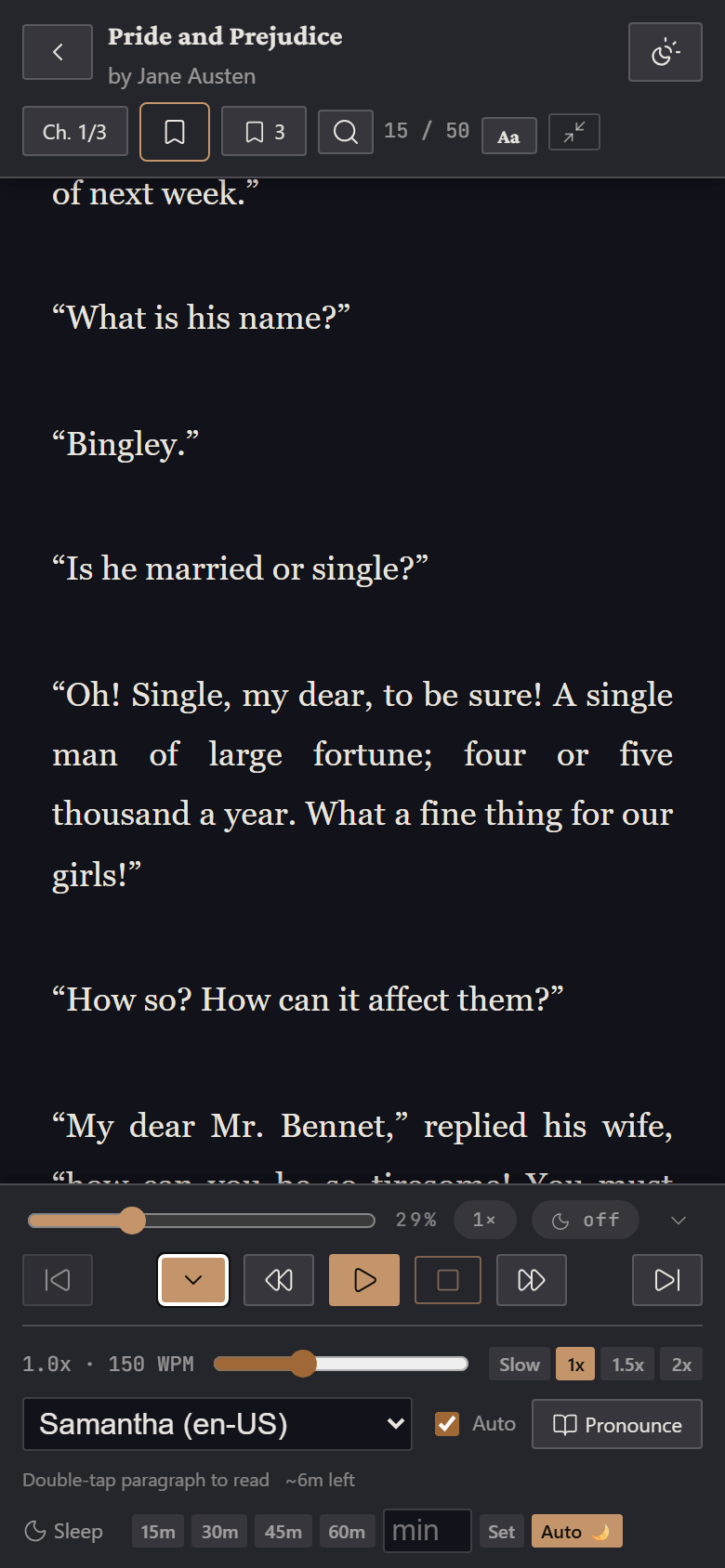
- Top row — the position slider, your percentage, a speed chip ("1×": tap to cycle 1× → 1.5× → 2× → 0.7×) and a sleep chip ("off": tap to cycle 15, 30, 45, 60 minutes and off). The small arrow at the end folds the settings away and back.
- Buttons — previous chapter, hide the controls (audio keeps playing), previous paragraph, Play/Pause, Stop, next paragraph, next chapter.
- Speed — the slider or the Slow / 1x / 1.5x / 2x buttons.
- Voice — pick from the voices on your phone.
- Auto — keep going paragraph after paragraph (untick it to hear one paragraph at a time).
- Pronounce — teach the voice how to say names it gets wrong: type the word and what it sounds like (e.g. "Jaime" → "Jay-mee"). Entries can apply to every story (Global) or just This story.
- Sleep — the timer (below).
Speed and voice are remembered on each device separately.
Sleep timer
Tap a time in the Sleep row (15m, 30m, 45m, 60m), or type your own number of minutes and tap Set. Narration stops when it runs out. The timer only counts down while the story is actually being read — pause for dinner and your minutes wait for you. Cancel stops the timer.
Auto 🌙 (on by default) sets the timer for you at night: if you start listening between 10 pm and 5 am — or you're still listening when 10 pm comes around — it starts a timer using the length you picked last time (45 minutes if you've never set one). A message pops up with a Cancel button in case you want to keep going. Tap Auto 🌙 to turn this off.
Lock screen, CarPlay and headphones
In the iPhone app, narration keeps playing with the screen locked. The lock screen and Control Center show the story's title with play/pause, and the skip buttons move back or forward one paragraph. Audio goes wherever your phone's audio goes — AirPods, Bluetooth speakers, or your car. In the car, play/pause and skip work from CarPlay or the steering wheel; start the story on your phone (Reader has no icon on the CarPlay screen).
The 🎧 and ⏹ markers
Every time you start listening, Reader drops a 🎧 Listening started here marker where you were. When narration stops, it moves a ⏹ Listening stopped here marker to where the voice got to. If you fell asleep, the 🎧 marker takes you back to the last part you actually heard awake.
You'll find both at the top of the bookmarks list and under Marks on the story's page. There's only ever one of each per story; you can delete them like any bookmark. (If you ever see two of the same, delete the extra one and mention it to the person who invited you.)
On the go
Reading without a signal
Stories marked ✓ Offline in your library are saved on your phone and open without any connection — on a plane, underground, or anywhere else without signal.
- A single story you import from the Import sheet is saved automatically on that phone when the import finishes.
- For anything else — files, or stories imported on another device — open the story's page and tap Save Offline.
Without a connection the Library shows a notice at the top and still lists your stories, but only the saved ones will open. Tonight needs a connection. Your reading position is saved on the phone as you go and syncs again once you're connected.
Sharing to Reader from other apps
In the iPhone app, you can send things to Reader from Safari, Files, Mail and most other apps:
- Tap the app's Share button and choose paperhurts (if it isn't in the row of apps, scroll to the end of the row, tap More, and pick it there).
- A small panel says ✓ Saved to paperhurts and closes by itself.
- The next time you open Reader, it imports what you shared.
You can share:
- A story link from any supported site.
- Documents — Word (DOCX), OpenDocument (ODT), EPUB, Markdown and plain text files.
- EPUBs, one per share. To add several, share them one after another; they import in order. An EPUB of a story you already have updates it.
PDFs and comics can't be shared this way — they can be very large. Add them with Import → Upload Book (PDF/CBZ) inside the app instead.
If your library is full, a shared file waits on the phone and imports the next time you open Reader after you've deleted some stories.
Sharing a lot at once: you can share about 30 chapter files every 10 minutes. If you go past that, Reader says Upload limit reached: pausing about N min. Nothing is lost: the rest import on their own once the pause is over.
Sharing chapters of your own writing: start each chapter file with a short header, one line each, then a blank line, then the text:
Story: The Name of Your Story
Chapter: 10
Title: Chapter Ten — Radio Silence
Story:says which work it belongs to, andTitle:names the chapter.Chapter:says where it goes. Use digits, like10(notTen).- If that chapter already exists, Reader asks: Insert it there (that chapter and the ones after it move down one), Replace it, Add it as a new chapter at the end, or Discard the file. Nothing changes until you choose.
- If chapters before it are missing (you shared chapter 12 before 11), it waits and goes in by itself once they arrive.
- If the header can't be read (a
#in front, a blank line between the lines,Chapter: Ten), Reader says why and asks, instead of making a new story. To fix it, tap Discard, correct the file, and share it again. - Without a
Chapter:line, a shared chapter goes at the end. - A
Status: completedline marks the work complete, so it leaves In progress (Status: in-progressreopens it). On the story page, More → Mark complete does the same. Series: The Name of Your SeriesandPart: 2put the work in a series of your own. WithoutPart:, it goes after that series' last part. Capitals, spacing and curly quotes don't matter: "Bob’s Saga" and "bob's saga" are one series. On the story page, More → Series… does the same.
Fixing a work's chapters: on a work you uploaded, open its story page and tap Chapters, then Edit.
- ↑ ↓ move a chapter one place. For a long jump, tap the pencil, then Move to… and type the number.
- The pencil also has Rename (the chapter's title only) and Delete chapter. Delete says how many bookmarks and highlights go with the chapter, and can't be undone. A work's only chapter can't be deleted (delete the story instead).
- Your reading place stays on the same text, on every device. On this phone the reader opens on the new order right away; another device that already had the story open shows the new order the next time it opens it.
- If the list changed on another device meanwhile, Reader refreshes it and asks you to try again, rather than moving the wrong chapter.
- Stories imported from a site (AO3 and the like) can't be edited: a re-fetch rebuilds them from the site.
Proofreading your own writing
Reader is a good place to check a chapter before you post it anywhere. Hearing your words read aloud catches the missing word, the repeated phrase and the sentence that runs on: things your eye skips because it knows what you meant.
- Write the chapter wherever you like, and save it as a Markdown or
plain-text file that starts with the short header from Sharing
chapters of your own writing above (
Story:,Chapter:,Title:). - Share the file to paperhurts. It goes into that story as that chapter. If that chapter is already there, Reader asks first; if an earlier one is missing, it waits for it.
- Open it and tap Listen, or read it. Mark what to fix with highlights and notes as you go.
- Fix the file and share it again. Reader asks what to do with it: tap Replace to swap in the new version.
- When it reads right, post it wherever you post.
- Word or Google Docs? Add the chapter with Import → Upload Doc (DOCX/ODT) and pick the story it belongs to. For a revised chapter, set Mode to Replace existing chapter.
- In Safari or on Android there's no share button: add the file with Import → Upload Markdown.
- Your drafts are private. Only your account can see them.
API tokens (Safari only)
The API Tokens button at the top of the Library is only for people who use Reader in Safari and want an iPhone Shortcut to send links to it. (The iPhone app's share button doesn't need one.) A token can only import stories, but treat it like a password. Ask the person who invited you for the Shortcut. It can send links from the forum sites; AO3 stories need the iPhone app.
Troubleshooting
"Couldn't reach the reader"
Reader can't talk to the server. Almost always that means no signal.
- If the iPhone app shows Couldn't reach the reader, tap Retry once you're connected.
- Without a connection, your saved (✓ Offline) stories still open from the Library.
If you're connected and it still can't reach the server, the server may be down — let the person who invited you know.
The screen dims but doesn't turn off
That's the iPhone's Always-On Display (iPhone 14 Pro and later), not Reader: when the phone locks, the screen dims instead of going black. To get a fully black screen, turn on Low Power Mode (which turns Always-On off) or switch off Settings → Display & Brightness → Always On Display.
If the screen dims while you're using it, even at full brightness, the phone is probably warm — iPhones lower brightness when they heat up.
The voices are different on my other device
Voices come from each device, not from Reader, so every phone, tablet and browser has its own list — and the app and Safari can differ. For nicer voices on iPhone, go to Settings → Accessibility → Spoken Content → Voices → English and download an Enhanced or Premium voice, then choose it in Reader's voice menu.
In a browser on a computer, Reader reads only with voices installed on that computer. If it has none, Reader says so when you tap Play: add a voice in the computer's settings, or listen in the iPhone app.
An import stopped partway
That's normal for very long stories on some sites. The story is kept as Incomplete — see Incomplete stories. Wait a while, then tap Fetch the rest (for an AO3 story, in the iPhone app). If you tap too soon, Reader says how many minutes to wait.
If a fetch seems stuck, open Import and look under In progress before tapping anything again; a second tap while one is running just tells you it's already being fetched.
"New uploads and imports are paused"
The server is low on space for a while, so it isn't taking new stories: uploads, imports, Re-fetch and Check for Updates wait. Reading, listening and export still work. A link or file you shared to Reader is kept and tried again every few minutes while the app is open, and the next time you open it. For anything else, try again later.
Something went wrong with listening
If narration stops, skips, or misbehaves, tell the person who invited you what happened: roughly when, in which story, whether you were in the iPhone app or Safari, and whether you were listening through the phone's speaker, headphones, Bluetooth or CarPlay.
When the app itself hits an error, it quietly sends a short technical report to the server so it can be fixed. The report never includes what you're reading.